Chapter 7: Add Support For MCP Apps
ACME Banking's assistant can now discover the right apps and workspace definitions. It can also start workflows through the MCP Web system tools. The next step is to make those responses more interactive.
Until now, the assistant has mostly replied with text or started apps directly. MCP Apps let an MCP tool return an interactive UI that io.Assist can render for the user. In this chapter, you will enable MCP Apps in both assistant implementations so the assistant can show a visual preview of the client-management workspace before opening it.
This gives the advisor a better experience: instead of only reading that a workspace is available, they can inspect the layout and then decide whether to restore it.
Related API References
MCP Apps build on AI Web MCP configuration and MCP Core tool capabilities:
Why MCP Apps Matter
MCP tools are not limited to plain JSON results. Some tools can return HTML UI resources that help the user understand, confirm, or complete an action.
In this guide, the important MCP App is the built-in Workspace Widget from MCP Core. It can display a workspace layout in preview mode and expose a Restore Workspace action. This is especially useful when the user asks to see what will happen before the assistant opens anything.
For ACME Banking, that means a request such as:
show me the portfolio details for Amelia Reed. But before opening any workspace, I would like to get a preview
can produce a visual workspace preview first. The advisor can then restore the workspace from the preview when they are ready.
What You Will Configure
MCP Apps support is enabled through the aiWebConfig.mcp section in each io.Assist app.
You will add two pieces:
| Configuration | Why it is needed |
|---|---|
clientsConfig.capabilities.extensions["io.modelcontextprotocol/ui"] | Tells MCP servers that this assistant can receive MCP App UI resources. Without this capability, MCP Core won't expose the Workspace Widget tool to the assistant. |
mcpApps | Enables the AI Web MCP Apps runtime and tells it where the sandbox proxy is hosted. The proxy is responsible for safely hosting the MCP App UI and bridging messages between the app and io.Assist. |
You will use workspace display mode:
displayMode: "workspace"
This lets MCP Apps open as io.Connect workspace windows beside the chat, which gives the Workspace Widget enough room to show the layout clearly.
Angular Implementation
Open:
apps/io-assist-angular/src/app/app.config.ts
Add a sandbox proxy URL next to the agent server URL:
const AGENT_SERVER_URL = "http://localhost:4111";
const MCP_SANDBOX_PROXY_URL = "https://iointel-demos-mcp-apps-proxy.interop.io";
Then update the mcp section in aiWebConfig:
aiWebConfig: {
    agentServer: {
        baseUrl: AGENT_SERVER_URL,
    },
    mcp: {
        clientsConfig: {
            enforceStrictCapabilities: false,
            capabilities: {
                extensions: {
                    "io.modelcontextprotocol/ui": {
                        mimeTypes: ["text/html;profile=mcp-app"],
                    },
                },
            },
        },
        mcpApps: {
            sandboxProxyUrl: MCP_SANDBOX_PROXY_URL,
            displayMode: "workspace",
        },
        ioIntel: {
            web: {
                enabled: true,
            },
        },
    },
},
The io.modelcontextprotocol/ui extension is the handshake between io.Assist and MCP Web. It tells MCP Web that this assistant can render MCP App resources with the text/html;profile=mcp-app MIME type.
The mcpApps block enables the runtime in AI Web. The sandboxProxyUrl points to the hosted sandbox proxy used by this guide, and displayMode: "workspace" tells AI Web to open MCP Apps in io.Connect workspace windows.
React Implementation
Open:
apps/io-assist-react/src/App.tsx
Add the sandbox proxy URL next to the agent server URL:
const AGENT_SERVER_URL = 'http://localhost:4111'
const MCP_SANDBOX_PROXY_URL = 'https://iointel-demos-mcp-apps-proxy.interop.io'
Then update the mcp section in staticConfig.aiWebConfig:
aiWebConfig: {
  agentServer: {
    baseUrl: AGENT_SERVER_URL,
  },
  mcp: {
    clientsConfig: {
      enforceStrictCapabilities: false,
      capabilities: {
        extensions: {
          'io.modelcontextprotocol/ui': {
            mimeTypes: ['text/html;profile=mcp-app'],
          },
        },
      },
    },
    mcpApps: {
      sandboxProxyUrl: MCP_SANDBOX_PROXY_URL,
      displayMode: 'workspace',
    },
    ioIntel: {
      web: {
        enabled: true,
      },
    },
  },
},
This is the same AI Web configuration as the Angular implementation. The only difference is the framework wrapper around io.Assist.
Test The Workspace Preview
Start the agent backend:
cd agentic-backend
npm start
In another terminal, start the browser platform and apps:
cd io-assist-anywhere-start
npm start
Open the io.Connect Browser platform at:
http://localhost:4200
Open either assistant app from the platform and ask:
show me the portfolio details for Amelia Reed. But before opening any workspace, I would like to get a preview
The assistant should discover Amelia Reed, find the client-management workspace, and use the built-in Workspace Widget MCP App to show a preview instead of restoring the workspace immediately.
The result should look similar to this:
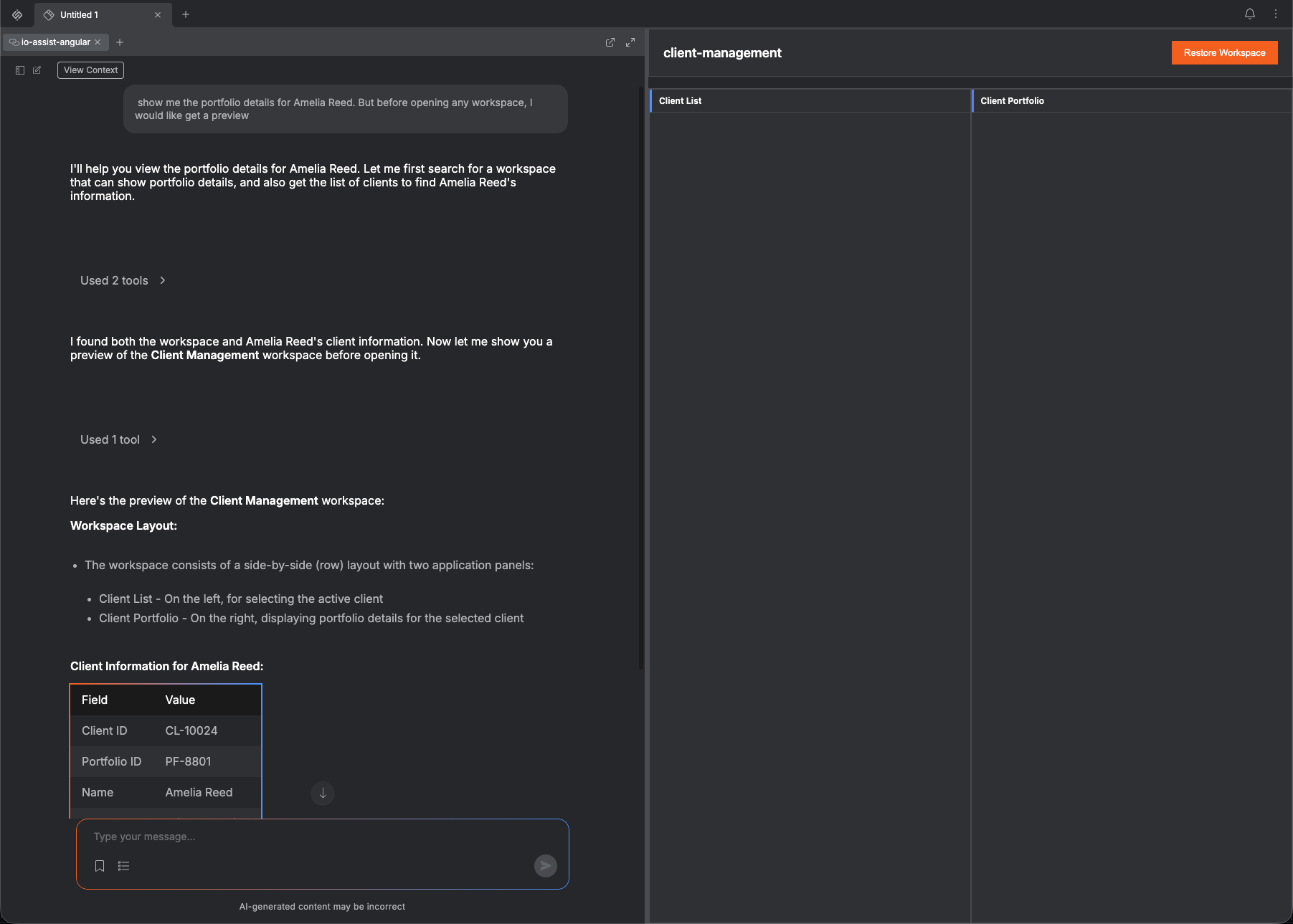
When you are happy with the preview, click Restore Workspace in the top-right corner of the preview. The Workspace Widget will then restore the client-management workspace with the context needed to show Amelia Reed's portfolio details.
What You Have Built
The assistant can now go beyond simple text responses and direct app launches. With MCP Apps enabled, MCP Web can expose tools that return interactive UI, and io.Assist can host that UI inside the io.Connect experience.
For ACME Banking, this means the assistant can now:
- discover clients through the static MCP Web tool
- discover relevant apps and workspaces through system tools
- use Working Context to understand the active workspace
- show an interactive workspace preview through the Workspace Widget MCP App
- let the advisor restore the workspace only after reviewing the preview
This is the first step toward an assistant that can participate in real workflows, not just answer questions about them.